

Simple solutions may seem most useful to users who use Dynamics 365 application services. Microsoft is constantly striving to help its customers in their daily work, and combined with artificial intelligence features, new tools and the development of certain functions can greatly facilitate the responsiveness of the work done.
One of the latest tools that uses AI and has been added to Power Apps is importing records from an Excel file into existing tables with AI-supported mapping. EASY AND FUN IMPORT - FINALLY!
A familiarization version of this feature is already available in the latest system update, and it is enabled through the Power Platform Administration Center. In Power Platform, select the appropriate environment in which the user wants to enable this feature then select "Settings" and the "Features and functions" area. Find the option "Import Excel to existing table with assisted mapping" - enable it and save it, and the system will publish the changes.

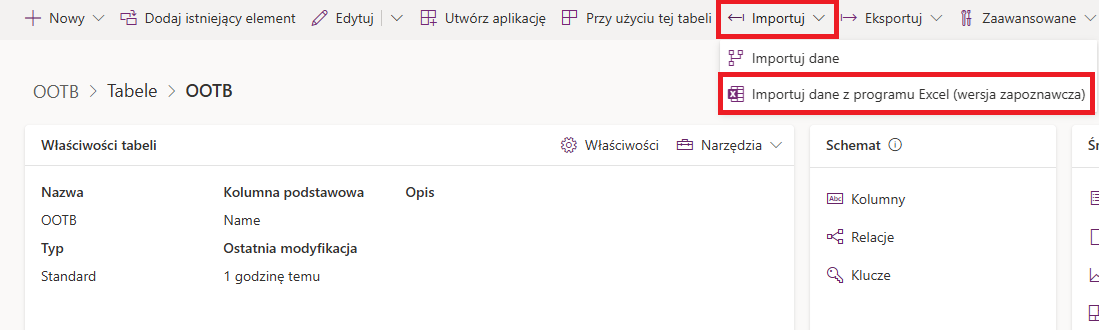
After saving the changes, navigate to the environment where the changes were made in make.powerapps.com developer application. From there, select the table to which the user wishes to enter new records using an Excel file. It is worth remembering that the Excel file to be entered should have defined headers so that the artificial intelligence can more easily find the appropriate mapping for the imported records. On the open table view in Power Apps, select "Import data from Excel (familiarization version)" from the ribbon.
The system will open a prompt to select the file to be imported. The user then selects the sheet in which the relevant values directed to be imported into the system are collected and selects the "Next" button.
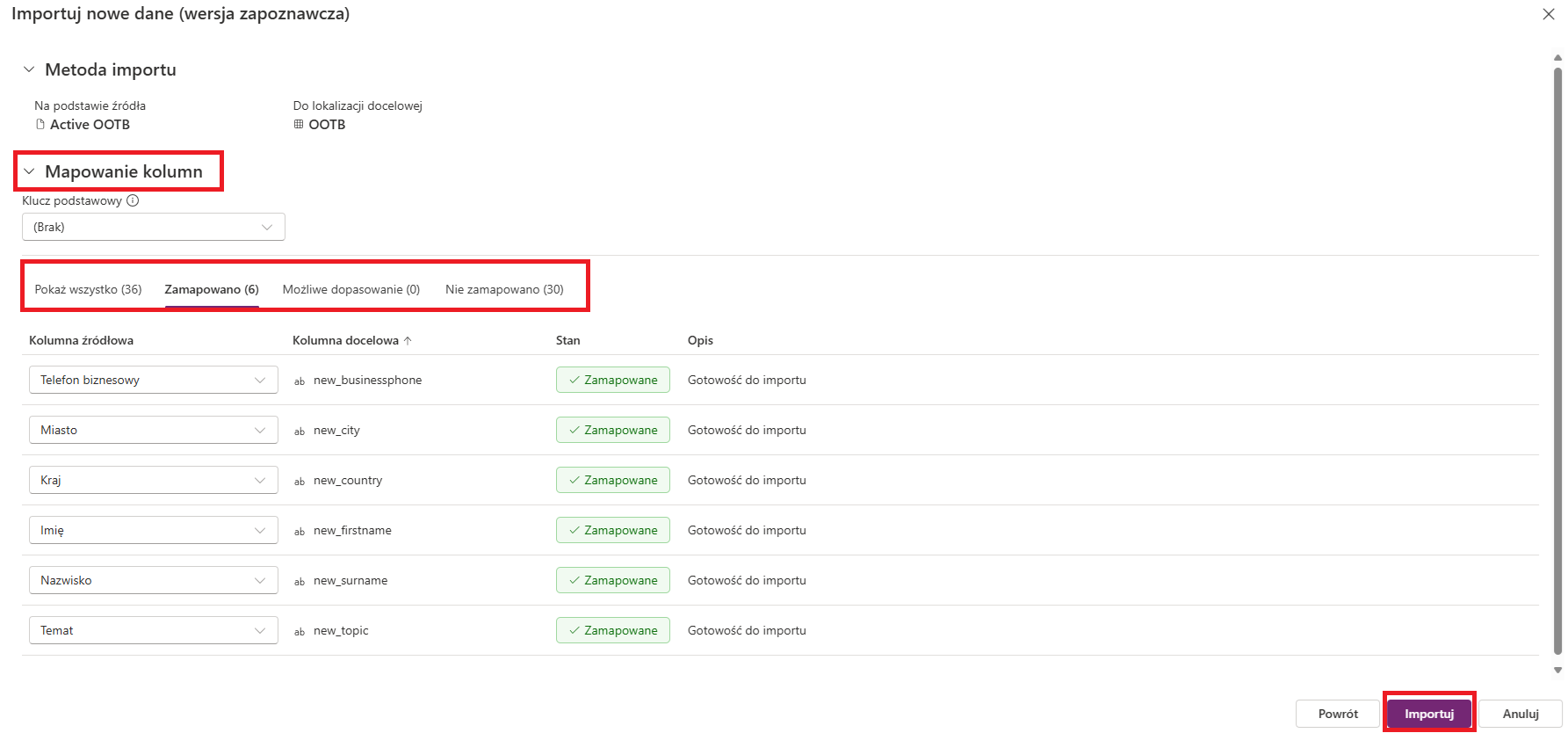
The system redirects the user to the "Column Mapping" window. In it, you can see information about which headings have been mapped to fields in the table and about possible matches and no matches. It is worth remembering that if the system detects a "possible match," the user must dispose of these "Accept/Reject" fields. If they are not properly disposed, the system will not allow the file to be imported into the table. The last step is to select the "Import" button. The user can also use matching with the "primary key".
As you can see, enabling this feature, as well as its operation, is very simple and can be very useful for users who have so far entered table records using in older import capabilities, which were sometimes time-consuming. This can significantly reduce work time and allow you to devote it to other duties. The addition of artificial intelligence-assisted column mapping support should also guarantee a more pleasant work experience with Excel files.




.png)