
In our last Out of the Box post, we took a closer look at how KSeF works in Business Central from the purchasing side, so now it’s time to focus on sales! In this post, I’ll walk you through the step-by-step process of sending an invoice to KSeF and how to use the additional features of the National e-Invoice System.
From document to e-invoice
Create and post the sales document as usual. If any data required by KSeF is missing, the system will prompt you to fill in the missing information. A preview of the KSeF invoice is available on both the draft and the posted document.

Where do posted invoices go?
Once posted, invoices automatically appear on the "KSeF Outgoing Documents" page, where you can view, among other things, the shipping status, reference numbers, and—once the system has responded positively—the KSeF document number.
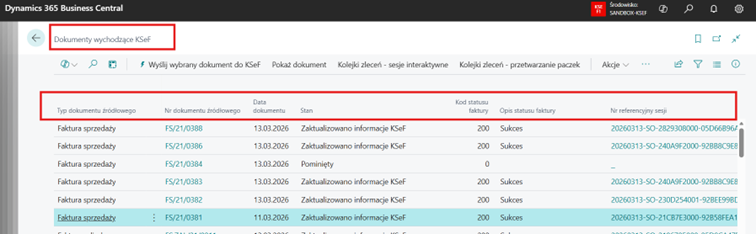
Shipping and status updates
Shipping and tracking are handled by job queues that run periodically; they send the document, process the session, retrieve the UPO, and update the data in the posted document. You only see clear statuses, with no manual work required.

Confirmations and audit trail
All Official Receipt Confirmations (ORCs) are collected on the KSeF ORC Registry website , and the communication history is available in KSeF Sessions. You have a complete audit trail in one place.
Exceptions Under Control
If you do not want to send a particular invoice to KSeF, select "Skip" when sending it to KSeF. The document is marked as "Skipped" and is not sent.
Offline mode? We've got you covered!
The system allows you to generate a QR code for offline use, which you can provide to the buyer as confirmation of the transaction details.
Sending sales documents to KSeF in Business Central is fast, automated, and compliant with regulations —featuring clear statuses, a central UPO registry, and the ability to handle exceptions.
Stay tuned and follow our upcoming posts in the Out of the Box series to stay up to date on best practices in Business Central.
Contact us:

.png)