

In today’s post from the OutOfTheBox series, I’d like to focus on a few changes introduced to the Projects module as part of Wave 1 2024. These changes will greatly simplify users’ work in the Projects module and save them time in their day-to-day tasks.
In the following post, I would like to discuss the following topics with you:
- Invoicing the buyer for multiple projects at the same time
- Project Archiving
The first change I’d like to highlight is the ability to invoice a customer for multiple orders at once. When we create multiple orders for a single customer and want to issue an invoice for them, the latest version of Business Central makes this task easier, allowing us to issue such an invoice with just a few clicks.
In the system, we create several new projects for the same buyer:
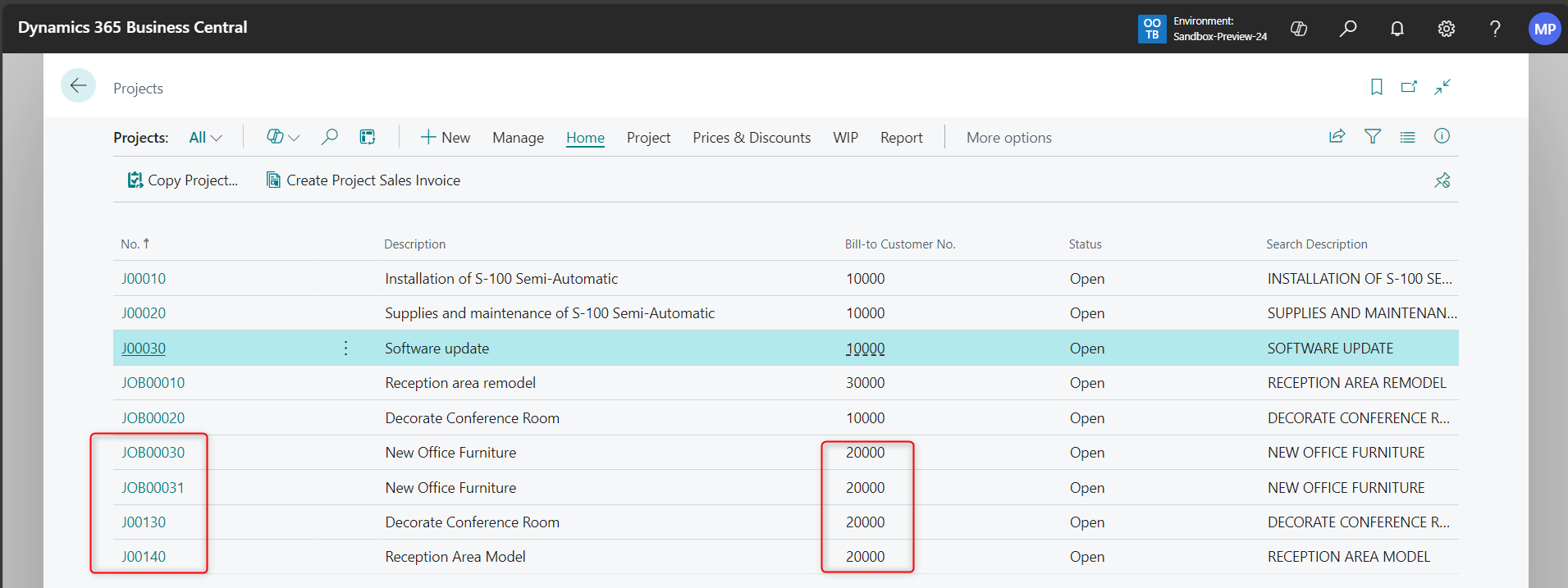
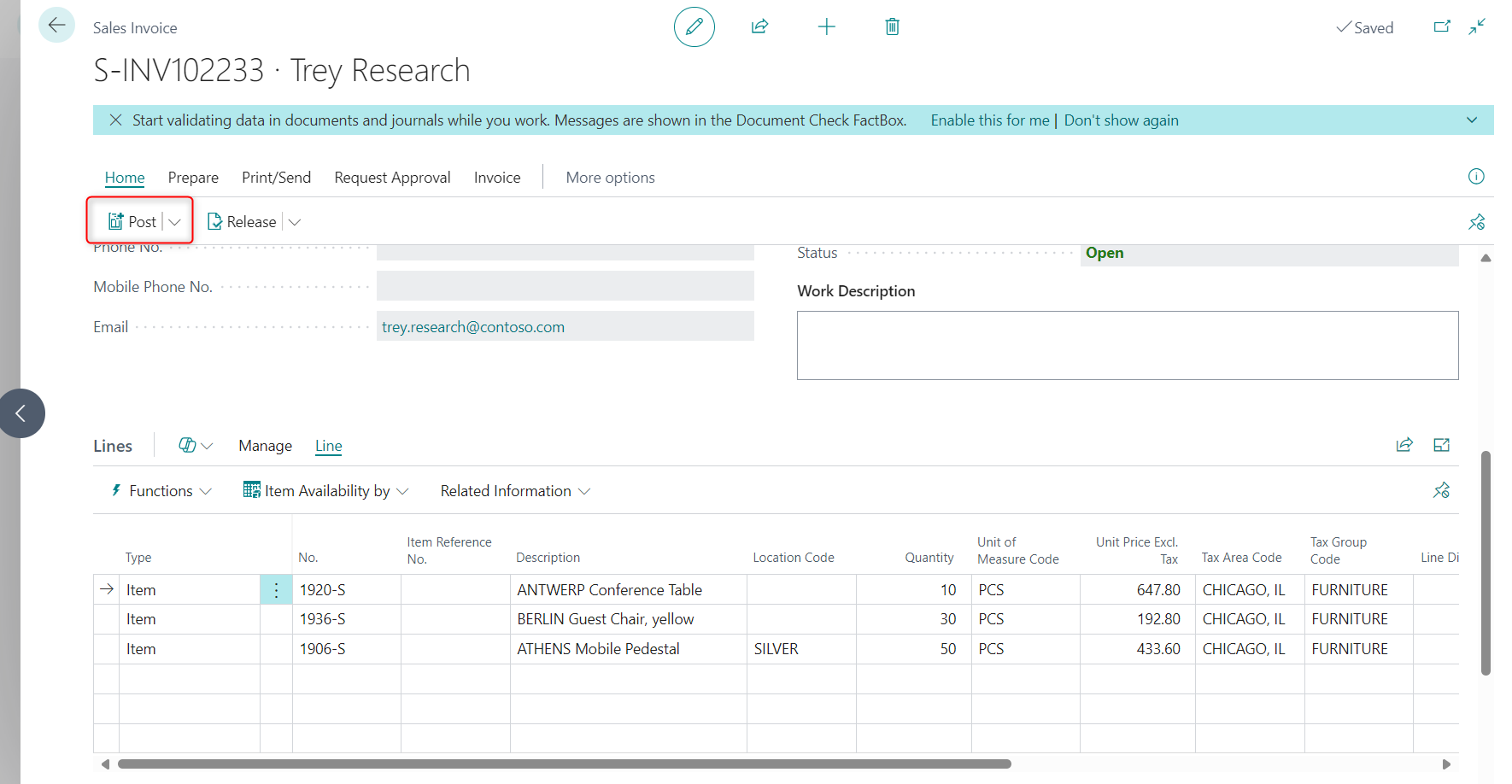
Next, we create a new sales invoice for the specified customer—in this case, customer number 20000, Trey Research. We go to the sales invoice list and use the “New” action to create an invoice. We fill in the header information and go to the Lines tab -> Functions -> Retrieve Project Planning Lines. In the new window, we select the project lines we want to include on the invoice and confirm by clicking OK.

Once the invoice has been prepared in this way, we can post it and verify the entries on the posted document.
The second change in the latest version of Business Central and the Projects module is the ability to archive projects. Since a project may evolve and change significantly from its original concept, the ability to archive it provides control over project data and individual project versions throughout its entire lifecycle.
The archiving option is available when performing the following actions:
- Changing a document's status or deleting it
- Printing, downloading, or sending a document via email
- Posting an Invoice for a Project
To enable project archiving in the BC system, go to the project settings page.
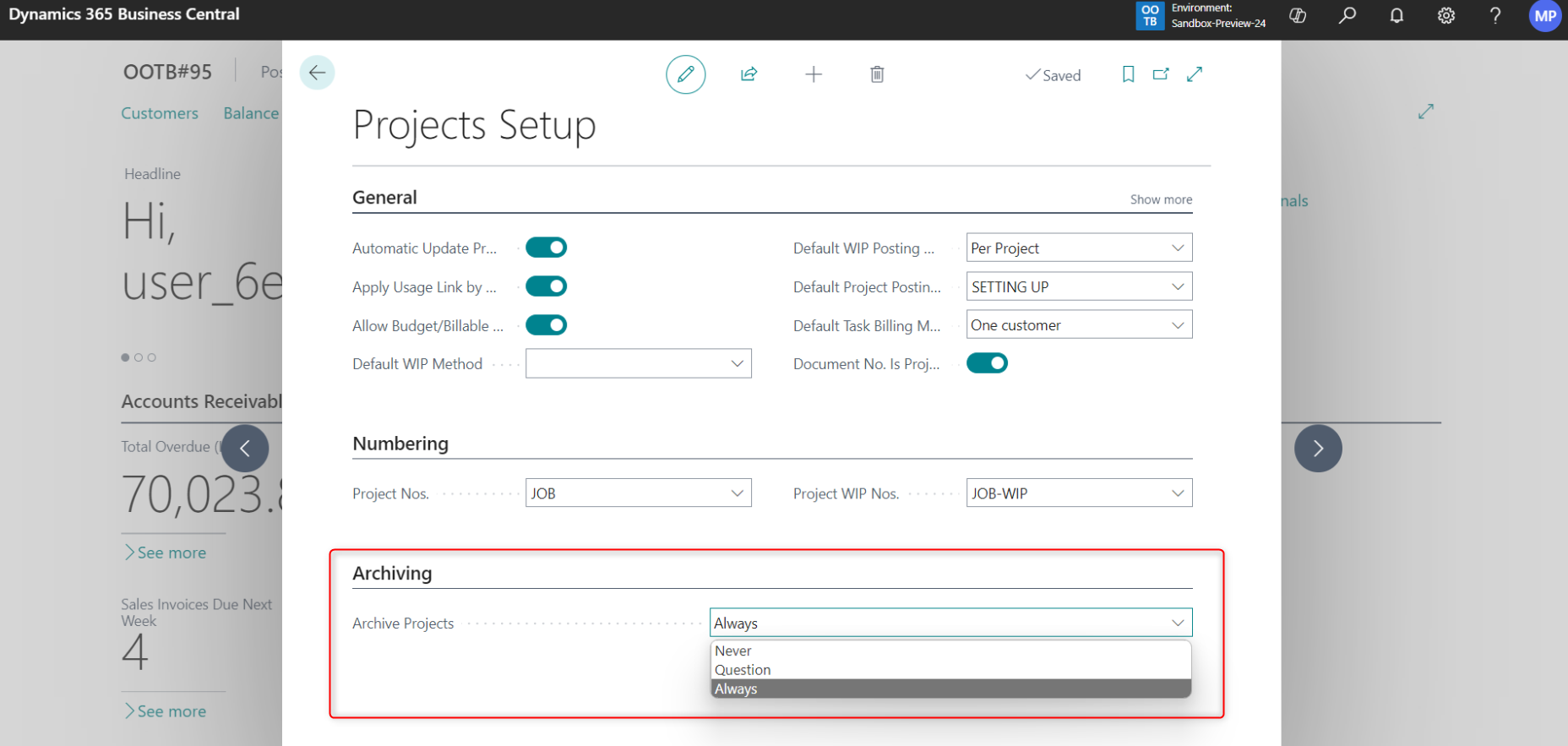
On the "Archiving" tab, there are three options available:
- Never —projects will not be archived automatically.
- Question – When a user performs an action while working on a project, the system will ask if they want to archive the project.
- Always— an archive of the project will be created automatically after the actions described above are performed on the project.
In the example below, I will select the “Query” option in the project settings. In the system, I open the file for the project in question and check the value in the “Status” field on the “Posting” tab. The project status is “Open.”
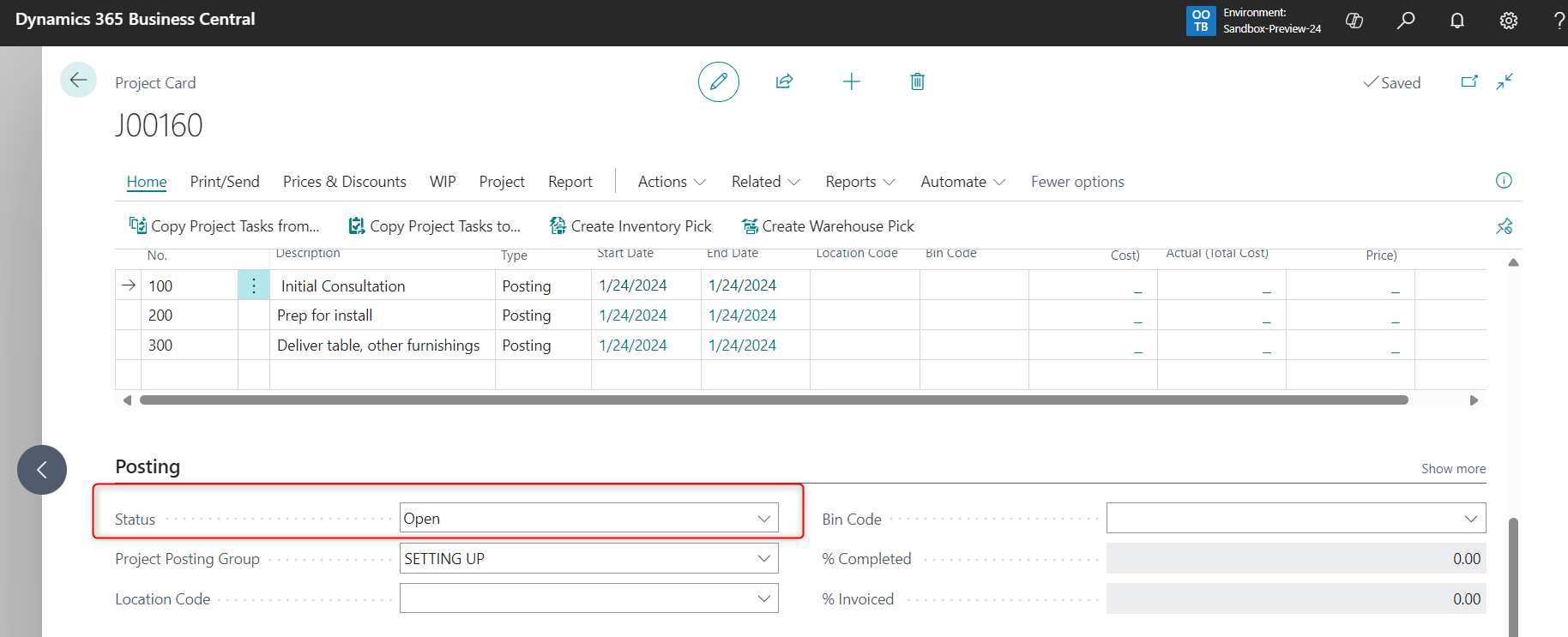
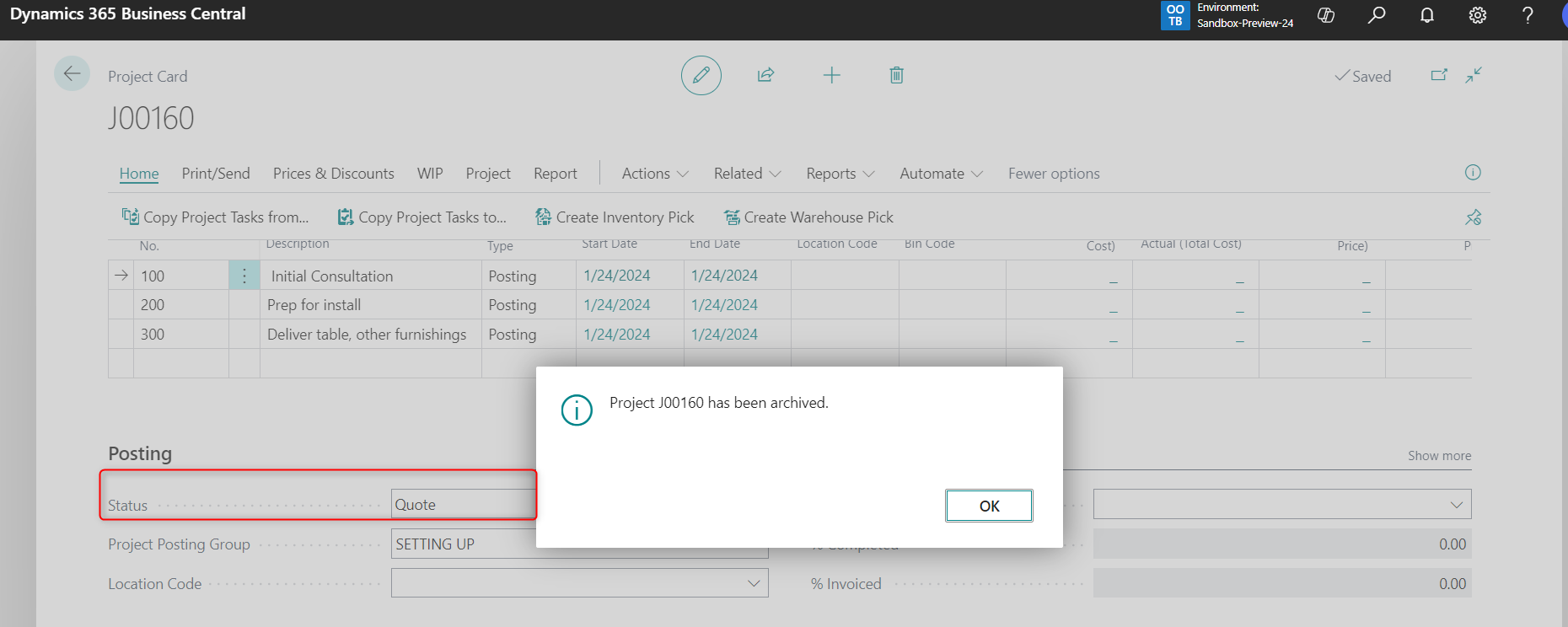
When I change the status, the system will display a message asking if we want to archive the open project. After confirming the archiving, we can see that the project’s status has been changed, and the system informs us that the project has been archived.

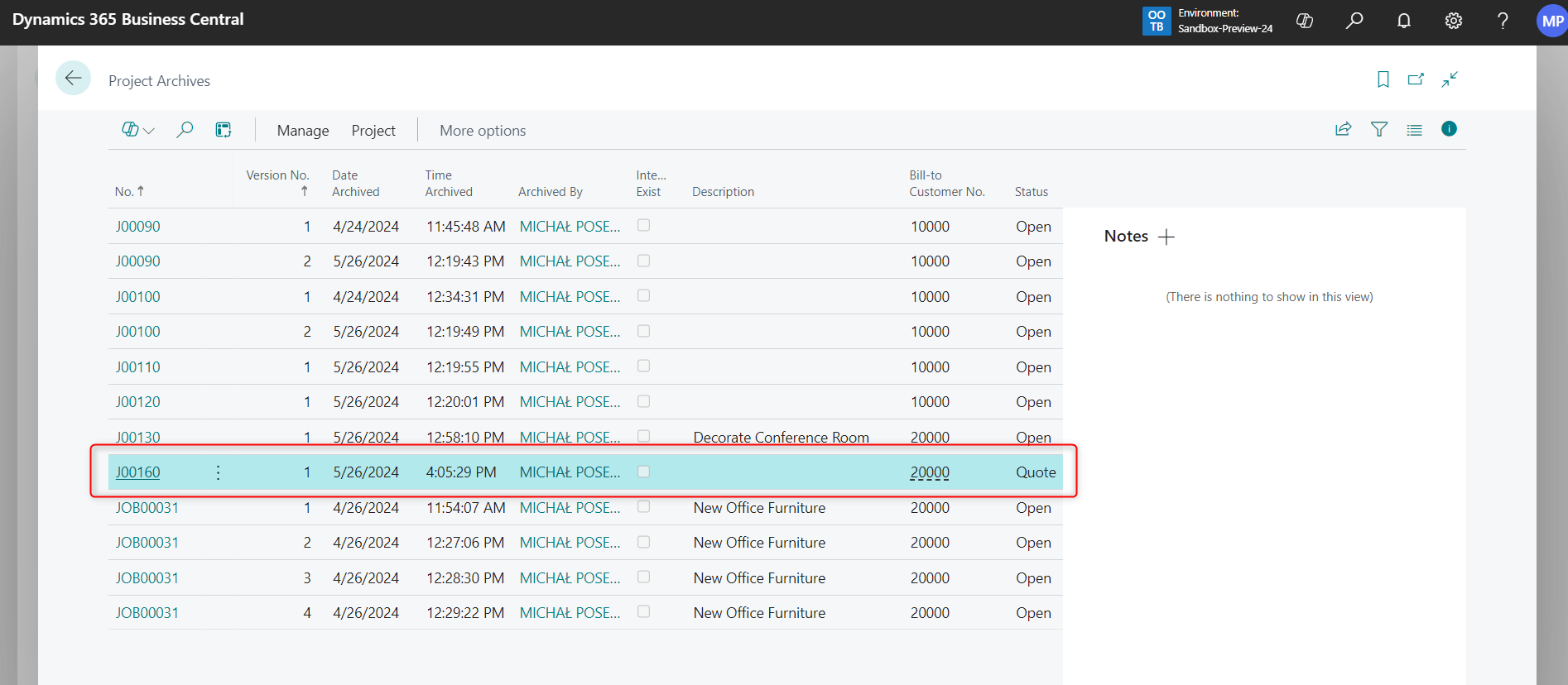
Next, we can check the archived version. To do this, enter the phrase “Project Archive” in the search bar and view the file for the project that was moved to the archive.
Users also have the option to archive projects manually. If you selected “Never” in the project settings, you can archive the project directly from the project folder. To do this, open the project, then on the ribbon, select Actions -> Functions -> Archive Project.

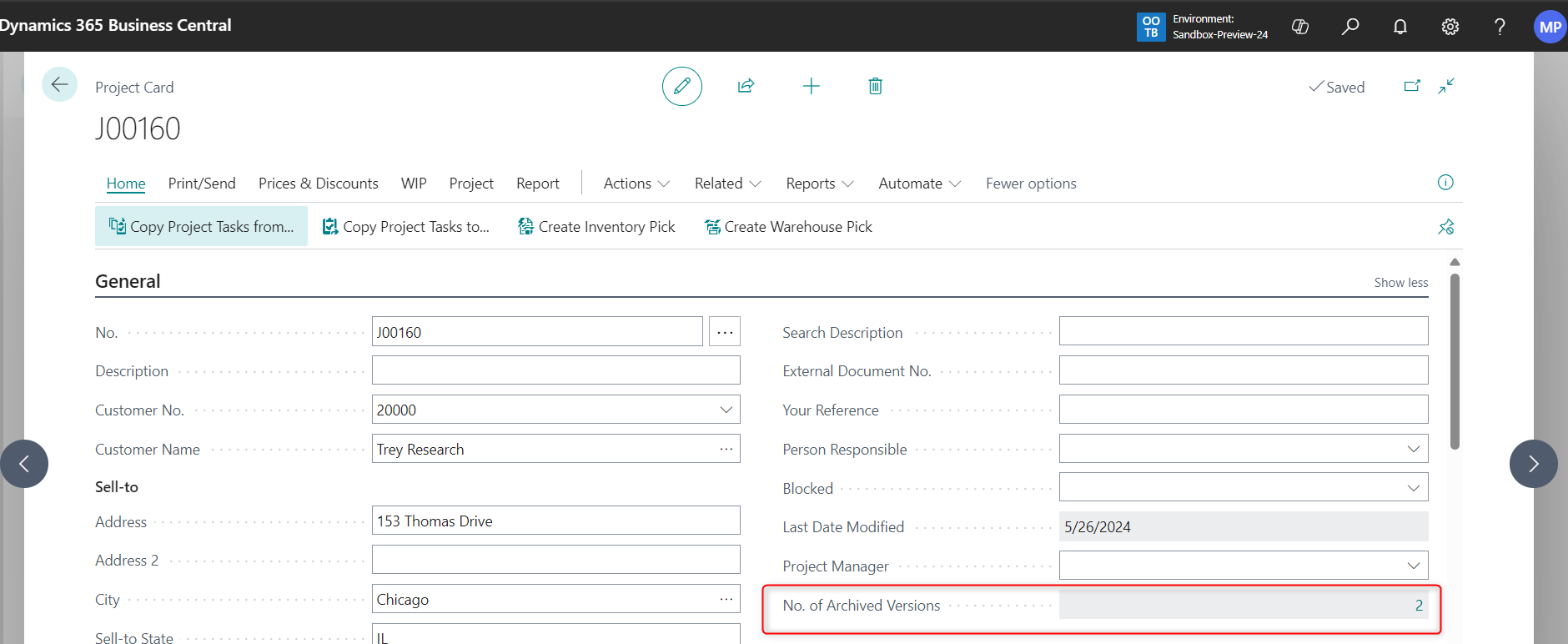
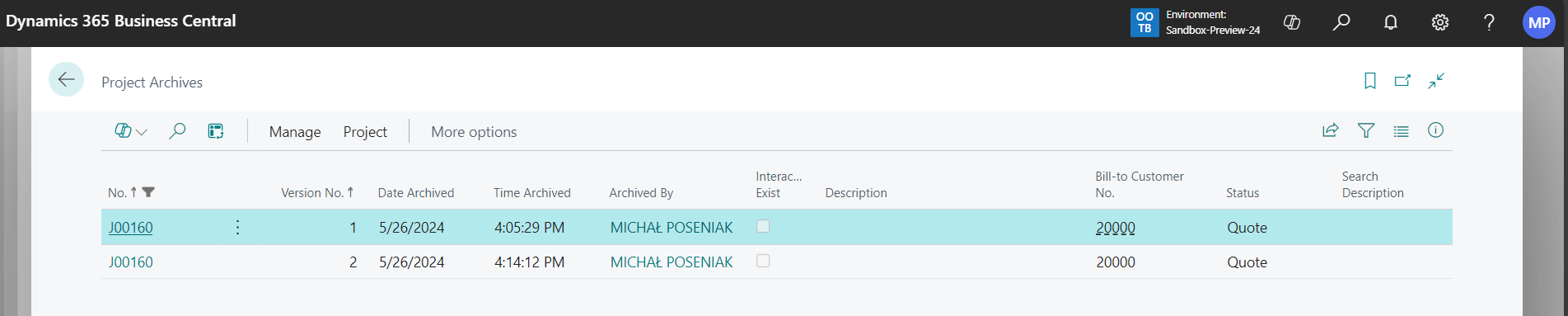
The system asks us again if we want to archive the project and informs us that the project has been moved to the archive. Another way to check archived versions is to look at the field containing the archive version number in the project header. Clicking the field labeled “2” will immediately take you to the list of archived projects, where a filter has automatically been applied to the project number of the project you had open.
In summary, with Wave 1 2024, Microsoft is introducing significant improvements to the Projects module, and the ones presented in this post are not all that are planned in this area. In future posts, we’ll cover the remaining new features, so we encourage you to follow our blog so you don’t miss out on future posts!


.png)