

In today’s post from the OutOfTheBox series, I’d like to continue discussing the changes to the Projects module in the latest release of Business Central 24—Wave 1 2024. These changes will help users work more efficiently and allow them to process data in the system more quickly.
In the following post, I would like to discuss the following topics with you:
- The ability to set the location code and container in the project header, in project rows, and in project planning rows
- Creating a picking order directly from project planning lines
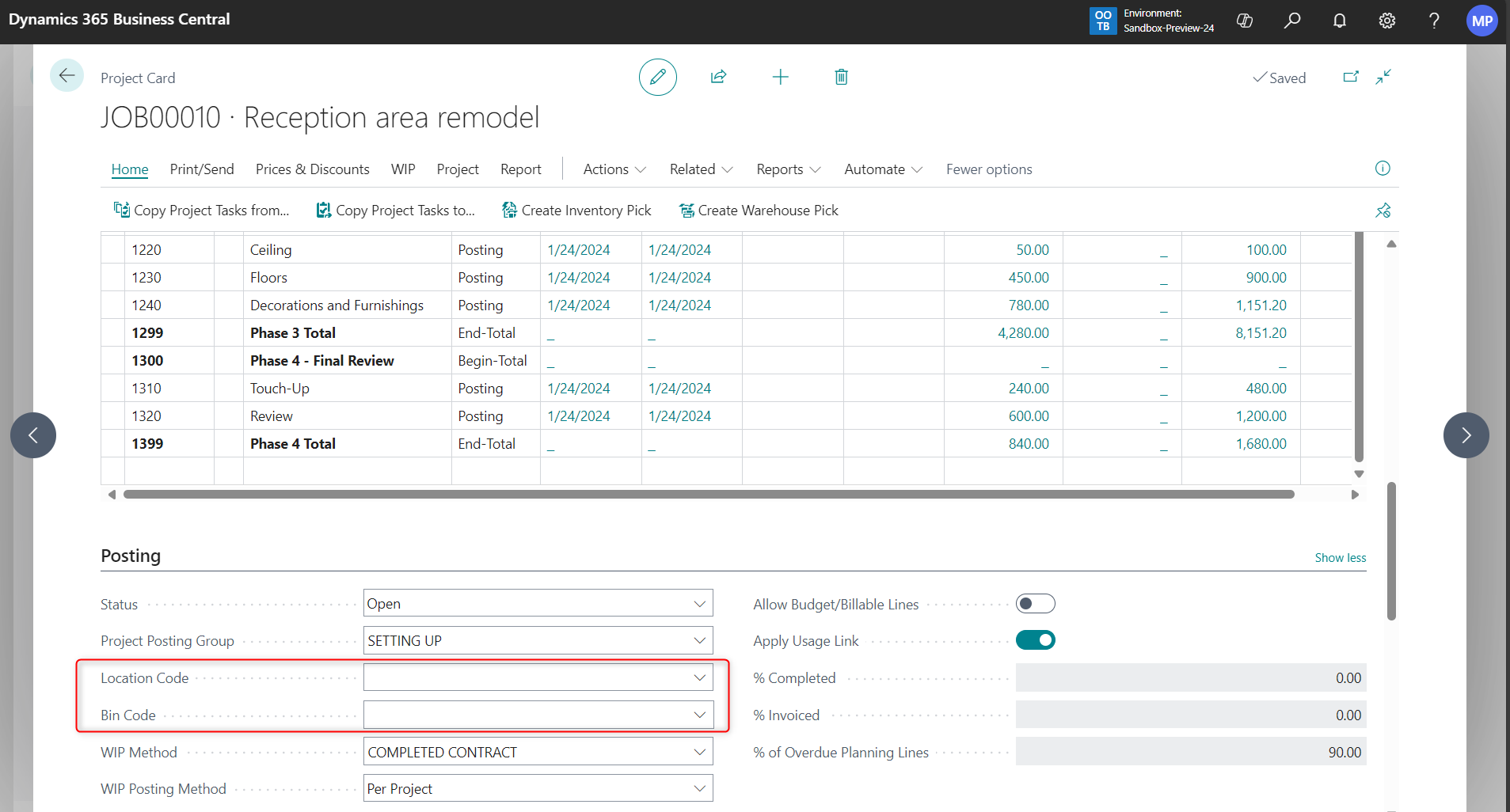
The first change is the ability to enter a location code and container number in the project header and in the project planning rows. To this end, new fields have been added to the project file. These fields are not visible by default in the project header and must be added through customization.
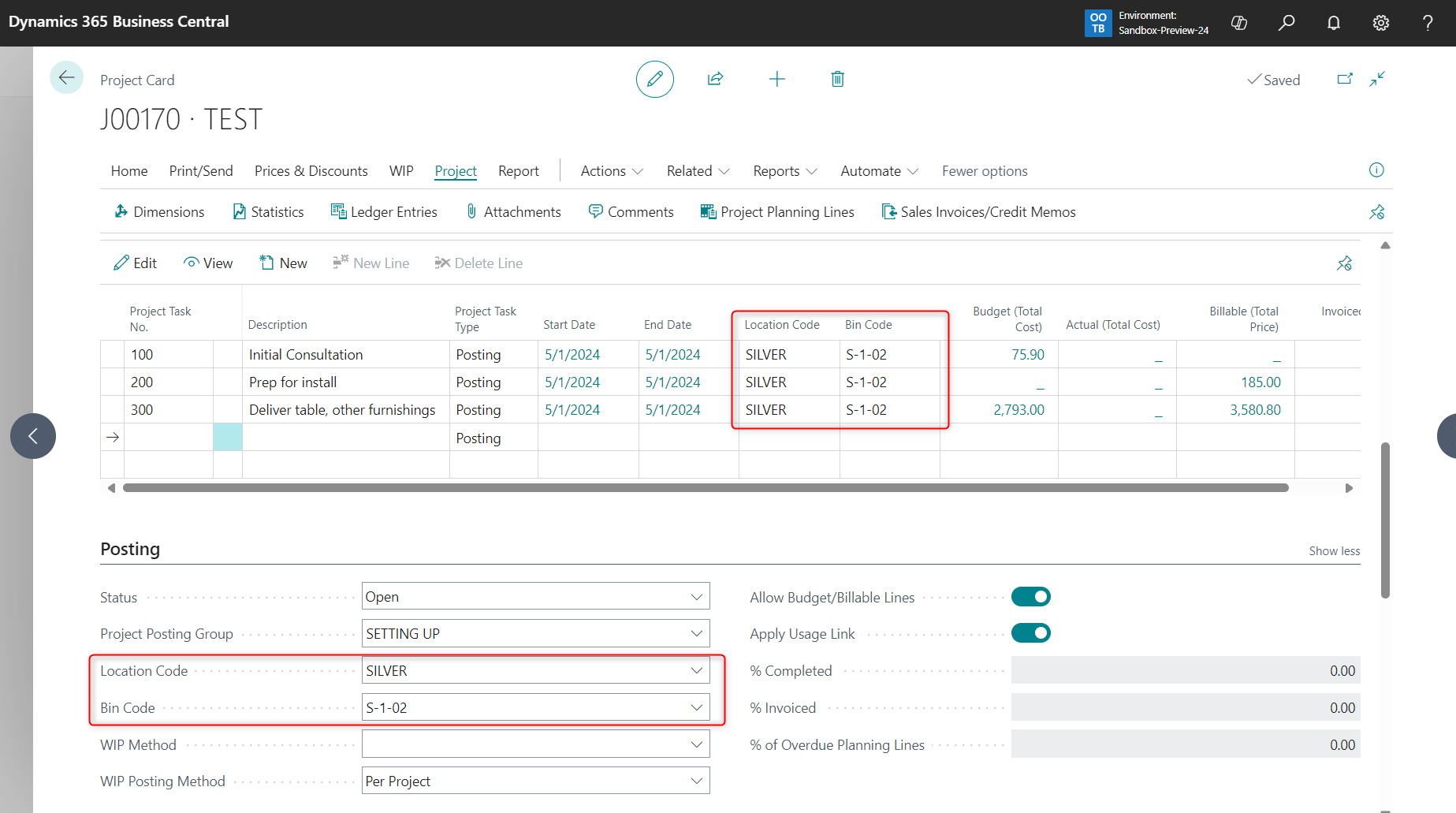
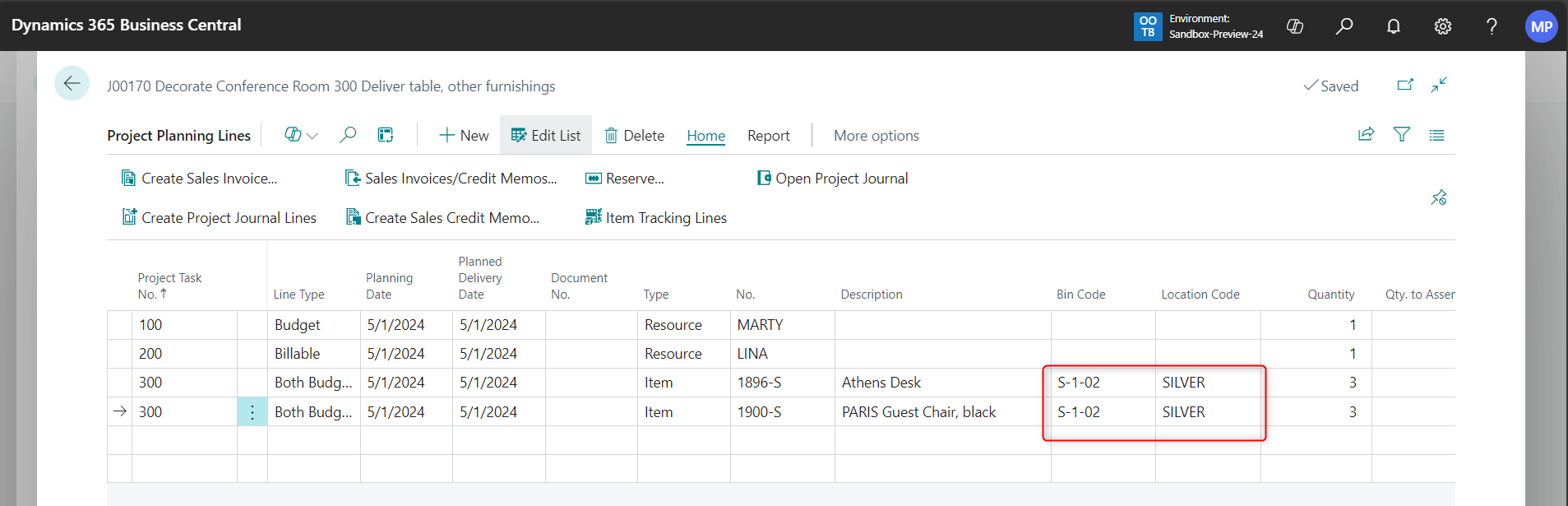
After specifying the location and container and creating project rows, the data will be automatically transferred to the project rows, as well as to the project planning rows if a row with inventory is added.
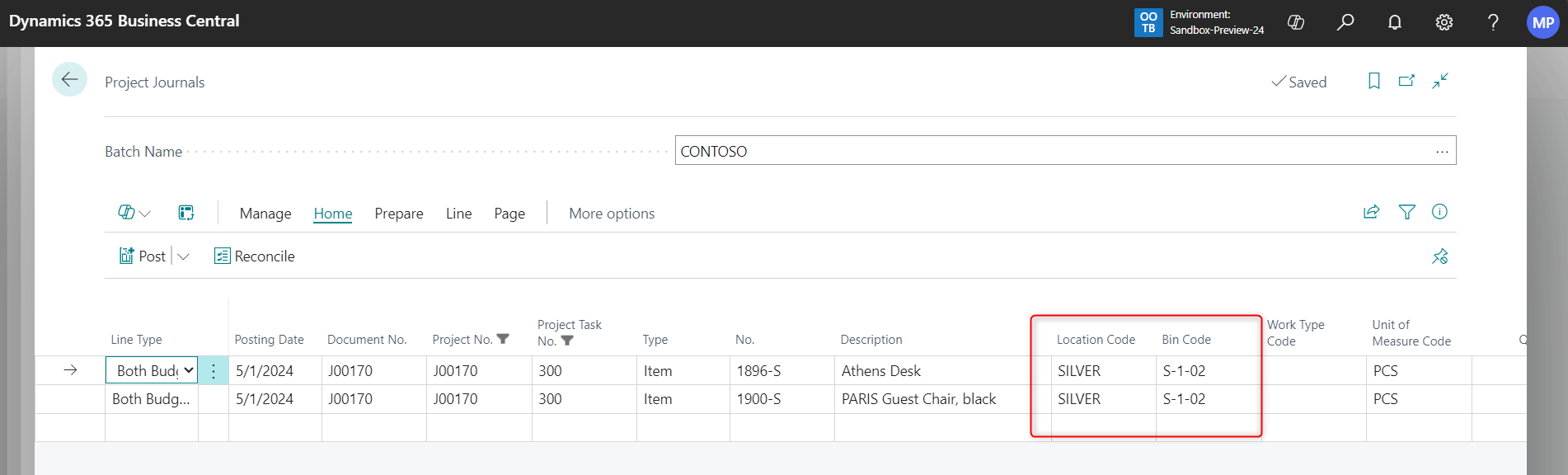
Container and location data are also automatically transferred to the project log. After performing the “Create Project Log Entries” action, we specify the posting date, the template name, and the log instance, and then confirm our selection. The system notifies us that the log entries have been created, and at this point we can open the project log using the “Open Project Log” button.

As we can see in the screenshot below, the location and container information have been automatically filled in.
However, please note that in a project where the location and container data have not been entered, these fields will not be populated in the project planning rows until the project planning rows are created and inventory is added. In this case, you must enter this information directly in the project planning rows.

The second new feature I’d like to highlight in this post is the ability to create a picking order directly from project planning lines. Creating a picking order directly for a project will save time and streamline inventory management.
To create a picking order for inventory directly from a project, we must first configure the appropriate settings in the inventory file. On the “Replenishment” tab, select “Picking” as the replenishment method, and in the “Picking Rules” field, select “Picking on Demand.”

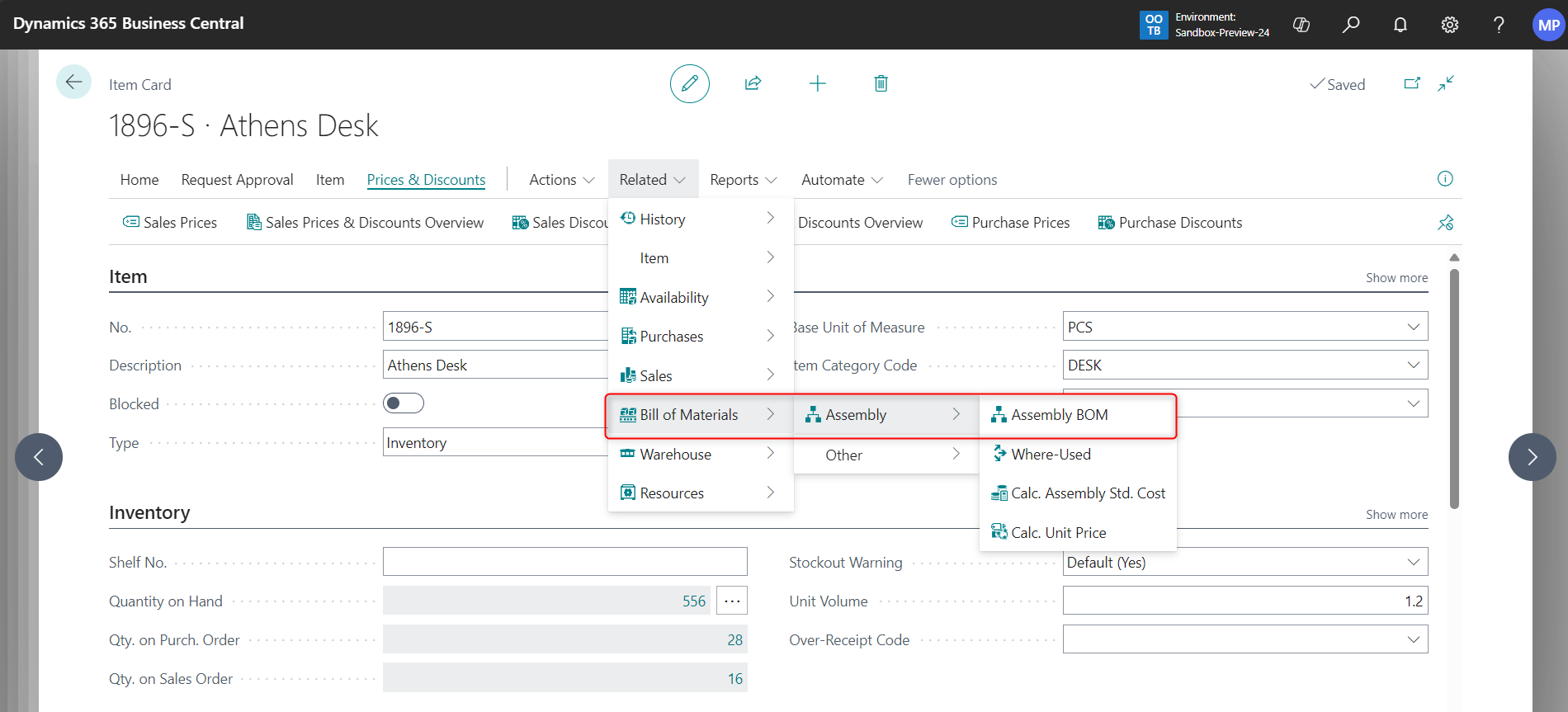
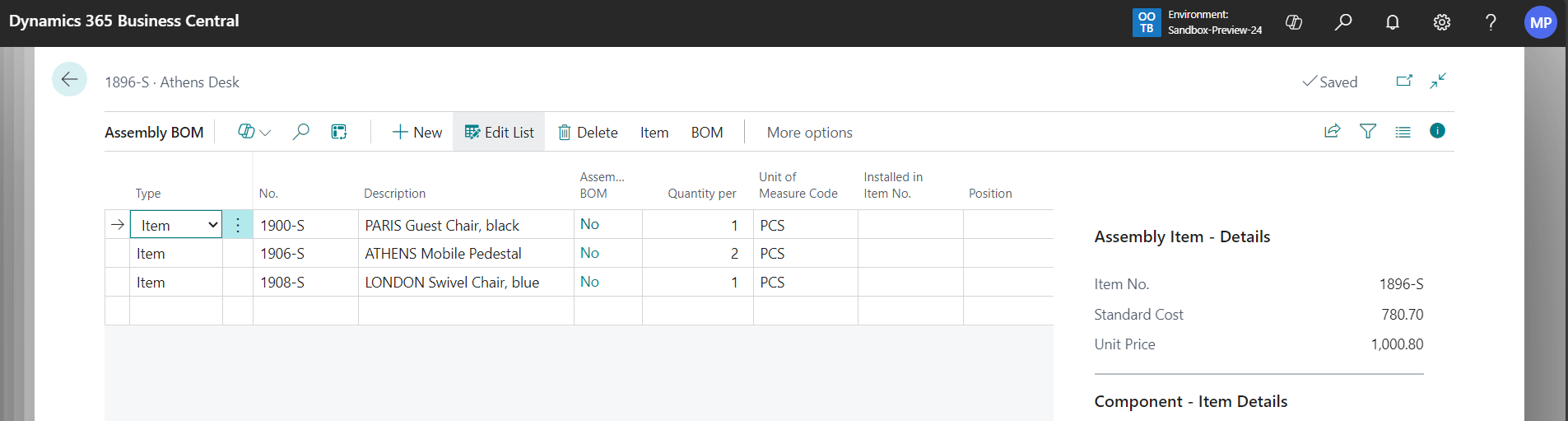
We also verify that the kitting BOM contains the correct data.
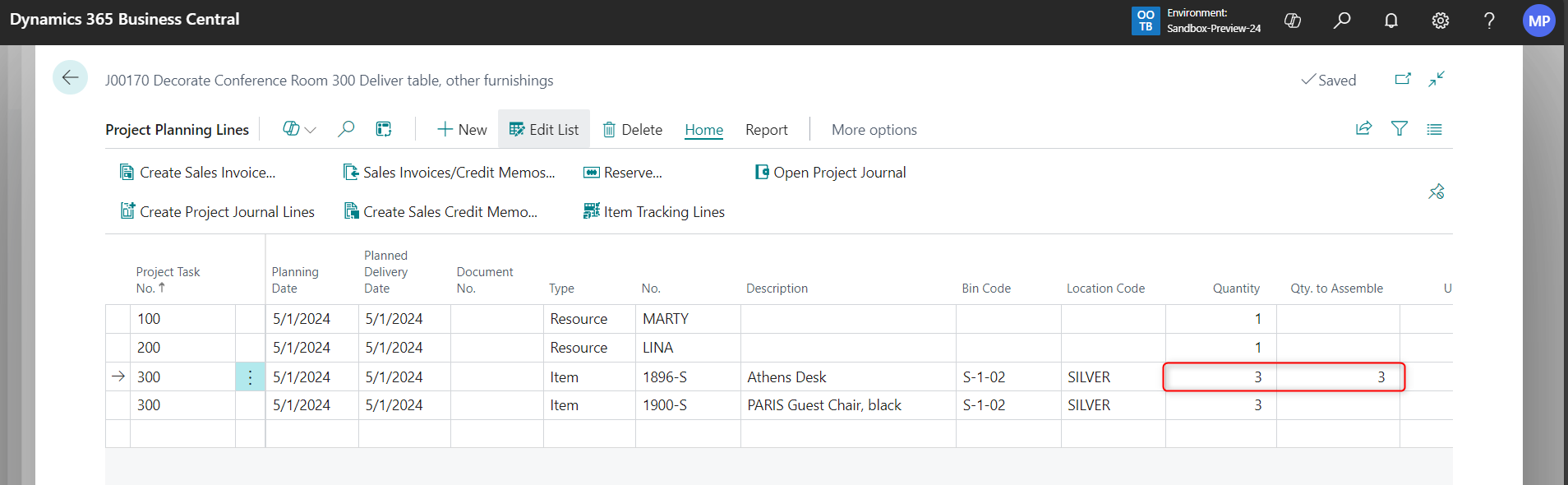
Moving on to the project planning rows, enter the quantity in the row with the stock for picking. The value in the “Quantity for Picking” field will be filled in automatically, and a new picking order will be created.

That's all for today's episode of the OutOfTheBox series. Thank you for watching the video. I also encourage you to visit our blog, where you can check out the other posts in the OutOfTheBox series, and to subscribe to our channel so you don't miss future posts.


.png)